
Guide Visual shopping experiences for WooCommerce
Create Shoppable Images with WooCommerce Product Hotspots
Turn lifestyle photos, room sets, lookbooks and product scenes into a direct path to purchase. Tag the products visitors can see, open their WooCommerce details in context and let customers act without losing the image that inspired them.
In short
- Connect visible items to real WooCommerce products
- Show price, stock status and add-to-cart actions in context
- Build and update the complete experience inside WordPress
Figure 1. A shoppable image in WP InSpot: the zone on the product opens a card built from the real WooCommerce product behind it, with its title, price, stock status and add-to-cart action. This demo tags one product; a lifestyle scene tags every item in it the same way.
Let customers shop what they can see
Lifestyle photography can show how products work together, but a static image leaves the next step unclear. Visitors may like a chair, lamp, jacket or accessory without knowing its product name or where to find it in the catalogue.
WP InSpot connects the visible item with its WooCommerce product. A customer selects the area that interests them and opens the relevant product information without leaving the visual context.
Tag products directly on lifestyle images
Use a room scene, outfit, campaign photo, collection image, product arrangement or editorial lookbook from the WordPress Media Library. Draw rectangular, circular or polygonal zones around the visible products, or use markers where a precise outline would cover too much of the image.
Each product hotspot can open a popup, modal or side drawer, lead to the WooCommerce product page or continue into another workspace. The same image can mix direct product actions with supporting text and connected visual views.
Use WooCommerce product data in the product card
Connect a zone to a WooCommerce product and use a reusable WP InSpot entity template to present the information customers need. Product blocks can display stock availability, regular price, sale price and an add-to-cart action alongside the image, title and supporting content. The documentation lists every WooCommerce block a template can carry.
The WooCommerce product remains the source of the commercial data. When its price or availability changes, the interactive presentation should read the current product information instead of relying on text copied manually into the image.
Direct add-to-cart works where the product can be purchased without further choices. If a customer must select a size, colour, configuration or another required option, send them to the product page to complete that decision.
Connect the scene to deeper product views
A lifestyle image can lead to a closer product view, a material detail, a product family or another styled scene. Nested workspaces let customers move from inspiration to detail while breadcrumbs and back navigation preserve the route. The tutorials walk through connected views with nested workspaces step by step.
- Room scene → furniture group or single product
- Complete outfit → clothing item or accessory
- Collection image → product family or detailed feature view
- Product arrangement → individual WooCommerce product
Generate a product list from the same hotspots
Some customers will explore the image product by product. Others will want a simple list of everything shown in the scene. WP InSpot can generate an optional HTML Table View from the actionable zones, so the shoppable image and product list use the same configured items.
Each product zone can become a row. Depending on the assigned columns and available product fields, the list can present product names, prices, sale prices, stock information and other useful attributes. A row with no value keeps the defined empty state, so the table remains structurally consistent.
Hovering a product row highlights the corresponding zone on the image. Clicking the row triggers the same action as clicking the hotspot: it can open the product card, follow a product link or continue into a nested workspace.
The list is server-rendered HTML, making product names, selected details and prices readable to customers and search engines instead of locking all commercial context inside an image. Table columns can be assigned once and inherited by nested workspaces, then overridden where a specific scene requires different information.
How to create shoppable images for WooCommerce
- Choose the lifestyle image. Create a workspace and select a room scene, outfit, lookbook, campaign image or product arrangement from the WordPress Media Library.
- Tag the visible products. Draw zones or place markers over each item customers should be able to identify and shop.
- Connect WooCommerce products. Assign the correct product entity and apply a verified template with price, stock and purchase or product-page actions.
- Add Table View (optional). Generate the product list from actionable zones, choose the columns and verify row-to-zone highlighting and actions.
- Publish and test. Embed the workspace with the Gutenberg block, shortcode or Elementor integration, then test product data, cart behaviour, mobile layouts and keyboard navigation.
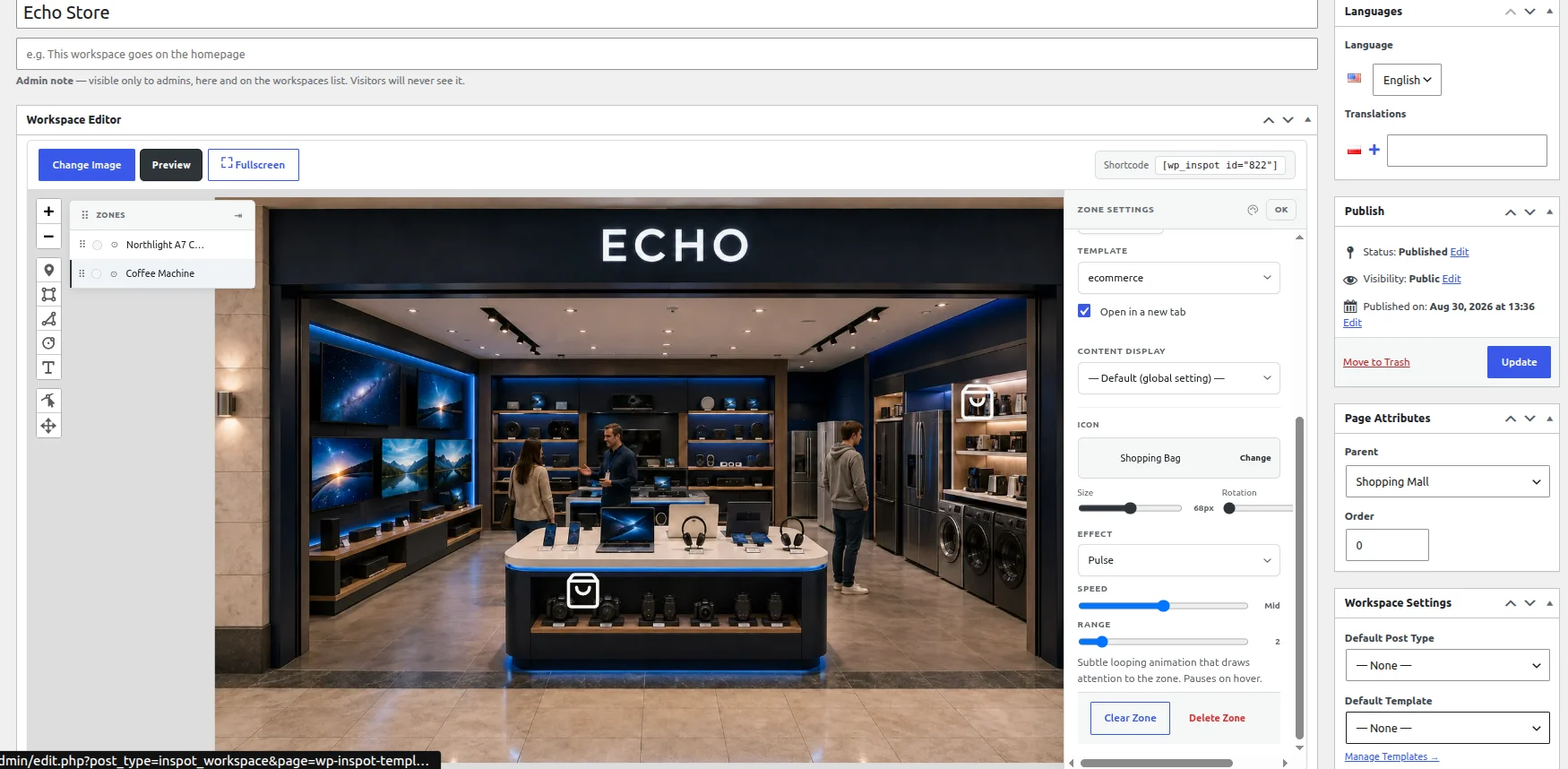
Figure 2. Tagging happens in wp-admin: zones are drawn on the scene, and each one is connected to the product it should open.
Built for visual WooCommerce merchandising
Fashion lookbooks and complete outfits
Tag clothing, footwear and accessories inside one styled image. Customers can identify each item, open its product details and continue to the product page when they need to choose a size, colour or variation.
Furniture and interior room sets
Turn an interior photo or render into a visual catalogue of furniture, lighting, textiles and accessories. Use connected workspaces when one room leads to another scene or a closer material view.
Beauty, gifts and curated collections
Present several complementary products in one campaign image. A visitor can inspect each item separately without searching for it by name or leaving the collection context.
Campaign and editorial content
Add product discovery to seasonal campaigns, blog posts, buying guides and branded lookbooks. The visual remains editorial, while the hotspots provide a clear path to the relevant WooCommerce products.
Showrooms and product displays
Use photos of displays, shelves or installations to connect visible items with product pages and current commercial details. Table View gives customers an alternative list of all products shown.
More interactive image examples from other industries follow the same structure.
Avoid rebuilding product tagging for every campaign
A custom shoppable-image interface requires responsive coordinate logic, WooCommerce queries, product-card design, cart behaviour and ongoing maintenance. A separate hosted platform adds another account, publishing workflow and source of product presentation outside WordPress.
WP InSpot keeps the workflow inside WordPress. Reusable entity templates control how WooCommerce products appear, while each workspace defines the image, zones and connected views for a particular campaign or collection.
- No custom front-end interface required for the standard hotspot flow
- Product cards can reuse one WooCommerce-aware template
- Campaign images and product connections remain manageable in wp-admin
- The same zones can drive both the image and the HTML product list
Know what WP InSpot does not replace
WP InSpot is the visual discovery and presentation layer. WooCommerce remains responsible for products, prices, stock, cart and checkout. Use dedicated extensions when a store needs product bundles, complete-look discounts, subscriptions, advanced variation selection, product recommendations, personalisation, dynamic filtering or a visual product configurator.
The distinction matters. WP InSpot helps customers find and understand products inside an image. It does not create new commercial rules around those products.
| What you need | Where it belongs |
|---|---|
| Finding, understanding and opening the products visible in an image | WP InSpot, inside WordPress |
| Products, prices, stock, cart and checkout | WooCommerce itself |
| Bundles, complete-look discounts, subscriptions or advanced variation selection | A dedicated WooCommerce extension |
| Live configuration, pricing calculations or personalisation | A product configurator |
Responsive and accessibility-conscious
Shoppable scenes must remain usable on touch screens where hover is unavailable and detailed product cards have less space. Test real product titles, prices, sale states, stock messages and buttons at representative mobile widths.
Use descriptive alternative text for the complete scene, clear labels for product zones, visible keyboard focus and a logical focus order. The HTML product list offers a text-based route to the same products. Final WCAG conformance depends on the theme, product content and testing of the complete store.
For agencies: add visual commerce without a custom build
WP InSpot gives agencies a repeatable way to deliver shoppable lifestyle images inside an existing WooCommerce store. Build the workspace in wp-admin, connect real products, reuse a branded entity template and publish it with the site’s normal WordPress tools.
The delivery process becomes clear: select the commercial use case, prepare the visual asset, confirm the tagged products, build the product template, draw zones, configure the optional table and test product data and cart behaviour before handover. Multi-site licences are listed on the WP InSpot pricing page.
Frequently asked questions
What is a shoppable image in WooCommerce?
A shoppable image is a lifestyle or product scene with clickable areas linked to real store products. Customers can identify an item, view its details and continue toward purchase directly from the visual.
How do I add product hotspots to WooCommerce images?
Create a WP InSpot workspace, add the image, draw a zone or marker over each product and connect the zone to the corresponding WooCommerce product. Apply a reusable entity template and publish the workspace.
Can a hotspot display WooCommerce prices and stock?
Yes. WP InSpot’s WooCommerce template blocks can display regular price, sale price and stock availability from the connected product.
Can customers add products to the cart from the image?
WP InSpot provides an add-to-cart block for WooCommerce product templates. Use it where direct purchase is valid. Products that require a size, colour or other choice should lead to the product page unless a verified selection flow is implemented.
Can WP InSpot create a Shop the Look page?
Yes, it can tag the individual products visible in an outfit, room or styled collection. It does not create a purchasable bundle, group discount or one-click purchase of the complete look without additional WooCommerce logic.
Can WP InSpot generate a list of products shown in the image?
Yes. Actionable product zones can become rows in a server-rendered HTML Table View. Hovering a row highlights the matching product, while clicking it triggers the same action as the zone.
Does the product information update with WooCommerce?
Product template blocks read data from the connected WooCommerce product. Avoid copying prices or stock messages into static text, because manually duplicated values can become outdated.
Is WP InSpot a product configurator?
No. It helps customers explore products and details on images. Live configuration, pricing calculations, personalisation and complex variation selection require a dedicated configurator or WooCommerce extension.
Turn product inspiration into a direct path to purchase
Use WP InSpot to connect the products inside lifestyle photos, room sets and lookbooks with their WooCommerce details and purchase actions. Start from an image and products you already have, then publish the first shoppable workspace inside WordPress.
Read next: interactive floor plans and site plans, or the interactive image plugin for WordPress feature tour.